# Spam protection
Every form falls victim to spambots at some point, and how you handle them can affect your customers.
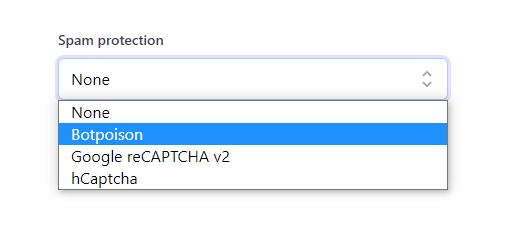
Formspark offers the following solutions to prevent spam:
- [Botpoison](https://botpoison.com/) integration
- [reCAPTCHA](https://www.google.com/recaptcha/about/) integration
- [hCaptcha](https://www.hcaptcha.com/) integration
- [Turnstile](https://www.cloudflare.com/products/turnstile/) integration
- Custom spam words
- Allowed domains
- Honeypot technique
On top of whichever of these you enable, every submission is screened by our [automatic spam filtering](#automatic-spam-filtering), unless you switch it off for that form.
Formspark will not deliver a submission to your inbox, send notifications or decrement your submission counter if any of the following conditions are true:
- The submission is empty
- The challenge verification was unsuccessful
- The submission contains a honeypot
- The submission contains one of your custom spam words
- The submission was sent from a site that is not on your allowed domains
- The automatic filter flags the submission as spam
An empty submission is discarded. Every other rejected submission is kept for you to review. See [rejected submissions](#rejected-submissions).
## Rejected submissions
A submission rejected as spam lands under `Spam` instead of `Inbox`. Open your form's `Submissions` and switch the view to `Spam` to see it. Hover its `Spam` tag to see what rejected it.
Rejected submissions stay there for up to 30 days. To recover one, use `Mark as non-spam`: it moves to your inbox and counts against your submission quota.
Your visitor sees an error for a rejected submission. A plain HTML form shows the error page, or your error redirect if you set one. An AJAX request answers `403` with `Rejected by spam protection`.
## Which should I pick?
| Provider | Visitor experience | Pricing | Strength |
| ----------------------------------------------------------- | ------------------ | ----------- | -------- |
| [Botpoison](https://botpoison.com/) | Invisible | Free / paid | Strong |
| [Turnstile](https://www.cloudflare.com/products/turnstile/) | Invisible | Free | Strong |
| [hCaptcha](https://www.hcaptcha.com/) | Checkbox | Free | Strong |
| [reCAPTCHA](https://www.google.com/recaptcha/about/) | Checkbox | Free | Strong |
| Custom spam words | Invisible | Included | Low |
| Allowed domains | Invisible | Included | Low |
| Honeypot | Invisible | Included | Low |
If you're not sure, start with **Botpoison** or **Turnstile**: both are invisible to your visitors and require no interaction.
## Botpoison
Formspark integrates with Botpoison, an invisible, user-friendly anti-spam solution.
### Getting started
1. Go to [https://botpoison.com/start/](https://botpoison.com/start/).
2. Create a new configuration.
3. Integrate the `public key` on your
website ([instructions](https://botpoison.com/documentation/getting-started/html/)).
4. Copy the `secret key`.
5. Open Formspark.
6. In your form's settings, under `Spam protection`, open `Challenge` and select `Botpoison` as the `Provider`.
7. Paste the `secret key` into the `Botpoison secret key` field.
Your form is now protected by Botpoison ✔.
To stop using Botpoison, set the `Provider` under `Challenge` back to `None`.
### Example
```html
```
### AJAX
If you're using AJAX, add the Botpoison response to your submission body via the `_botpoison` property.
```javascript
const body = {
email: "john.doe@example.com",
message: "Hello, World!",
_botpoison: "...",
};
```
### Recommended libraries
- JavaScript: [@botpoison/browser](https://www.npmjs.com/package/@botpoison/browser)
## reCAPTCHA
Formspark integrates with Google's reCAPTCHA v2 "I'm not a robot" checkbox.
### Getting started
1. Go to [https://www.google.com/recaptcha/](https://www.google.com/recaptcha/).
2. Navigate to the admin console.
3. Create a new site.
4. Make sure you select `reCAPTCHA v2`.
5. Make sure you whitelist your website's domain.
6. Integrate the `site key` on your website ([instructions](https://developers.google.com/recaptcha/docs/display)).
7. Copy the `secret` key.
8. Open Formspark.
9. In your form's settings, under `Spam protection`, open `Challenge` and select `reCAPTCHA v2` as the `Provider`.
10. Paste the `secret key` into the `reCAPTCHA v2 secret key` field.
Your form is now protected by reCAPTCHA ✔.
To stop using reCAPTCHA, set the `Provider` under `Challenge` back to `None`.
### HTML
Make sure your form's `method` attribute is explicitly set to `POST`.
```html
```
### AJAX
If you're using AJAX, add the reCAPTCHA response to your submission body via the `g-recaptcha-response` property.
```javascript
const body = {
email: "john.doe@example.com",
message: "Hello, World!",
"g-recaptcha-response": "...",
};
```
### Recommended libraries
- React: [react-google-recaptcha](https://github.com/dozoisch/react-google-recaptcha)
### Articles
- [How to enable your submit button based on reCAPTCHA results](https://technotrampoline.com/articles/how-to-enable-your-submit-button-based-on-recaptcha-results/)
## hCaptcha
Formspark integrates with hCaptcha, an independent alternative to Google's reCAPTCHA.
### Getting started
1. Go to [https://www.hcaptcha.com/](https://www.hcaptcha.com/).
2. Create a new site.
3. Integrate the `site key` on your website ([instructions](https://docs.hcaptcha.com/#add-the-hcaptcha-widget-to-your-webpage)). You can find your site key [here](https://dashboard.hcaptcha.com/sites).
4. Copy the `secret key`. You can find your secret key [here](https://dashboard.hcaptcha.com/settings).
5. In your form's settings, under `Spam protection`, open `Challenge` and select `hCaptcha` as the `Provider`.
6. Paste the `secret key` into the `hCaptcha secret key` field.
Your form is now protected by hCaptcha ✔.
To stop using hCaptcha, set the `Provider` under `Challenge` back to `None`.
### HTML
Make sure your form's `method` attribute is explicitly set to `POST`.
```html
```
### AJAX
If you're using AJAX, add the hCaptcha response to your submission body via the `h-captcha-response` property.
```javascript
const body = {
email: "john.doe@example.com",
message: "Hello, World!",
"h-captcha-response": "...",
};
```
### Recommended libraries
- React: [react-hcaptcha](https://github.com/hCaptcha/react-hcaptcha)
## Turnstile
Formspark integrates with Turnstile, Cloudflare's smart CAPTCHA alternative.
### Getting started
1. Go to [https://www.cloudflare.com/products/turnstile](https://www.cloudflare.com/products/turnstile/).
2. Create a new site.
3. Integrate the `site key` on your website ([instructions](https://developers.cloudflare.com/turnstile/get-started/client-side-rendering/)).
4. Copy the `secret key`.
5. In your form's settings, under `Spam protection`, open `Challenge` and select `Turnstile` as the `Provider`.
6. Paste the `secret key` into the `Turnstile secret key` field.
Your form is now protected by Turnstile ✔.
To stop using Turnstile, set the `Provider` under `Challenge` back to `None`.
### AJAX
If you're using AJAX, add the Turnstile response to your submission body via the `cf-turnstile-response` property.
```javascript
const body = {
email: "john.doe@example.com",
message: "Hello, World!",
"cf-turnstile-response": "...",
};
```
### Recommended libraries
- React: [react-turnstile](https://github.com/Le0Developer/react-turnstile)
## Automatic spam filtering
On top of any provider you choose, Formspark screens every submission for spam. It is on for every new form, requires no setup, and is invisible to your visitors.
The filtering is powered by Botpoison Classify, and you do not need a Botpoison account for it. It complements the challenge you select above rather than replacing it.
### Switching it off
Under `Spam protection` in your form's settings, open `Automatic filter` and turn off `Screen submissions for spam`.
Two things change for that form when you do:
- Every submission is delivered, including the ones the filter would have held back. Each of those counts against your submission quota, where a filtered submission costs you nothing.
- Filtered submissions no longer appear under `Spam`, which is where you would otherwise recover one the filter judged wrongly.
Your honeypot, custom spam words and chosen provider are unaffected and keep running.
## Custom spam words
Custom spam words let you block submissions that contain specific words.
We scan the fields your visitor filled in for the words you specify. Matching ignores case and also finds a word inside a longer one. If a word is found, the submission is rejected as spam.
Fields your visitor did not write are skipped: control fields such as `_redirect`, challenge responses such as `g-recaptcha-response`, and tracking fields such as UTM tags (`utm_source`) and ad click ids (`gclid`, `fbclid`).
You specify the comma-separated list of words in your form's settings, under `Spam protection` in `Spam words`.
The total length of the list must not exceed 2,560 characters.
## Allowed domains
List the sites your form lives on, and submissions sent from anywhere else are rejected as spam. Set it in your form's settings, under `Spam protection` in `Allowed domains`. It is off until you add a domain.
- Each domain also covers its subdomains: `example.com` allows `www.example.com` and `shop.example.com`.
- You can paste a full address. `https://www.example.com/contact` is saved as `example.com`.
- Submissions sent from a server, or by a tool such as `curl`, are rejected, because they do not say which site they come from.
- To test on your own machine, add `localhost` to the list.
## Honeypot
::: warning
While simple to implement, this technique is not the most effective. Modern spam bots that execute JavaScript can detect hidden fields and skip them, bypassing the honeypot entirely. Pair it with another provider above for serious protection.
:::
The honeypot technique is a simple-to-implement spam prevention solution.
To enable this feature, add a field with the name `_honeypot` or `_gotcha` to your form and hide it with CSS (see example below). When a spam bot enters a value, the submission is rejected as spam.
```html
```
## Custom honeypot
Besides `_honeypot` and `_gotcha`, you can specify your own honeypot name in your form's settings, under `Spam protection` in `Honeypot`. Enter it in the `Custom field name` field. The name must match your field's `name` exactly, including case.
```html
```