# Installation
## Getting your form ID
Every form in Formspark has its own action URL. To get one, sign in to the [Formspark dashboard](https://dashboard.formspark.io) and create a new form. The form opens on its `How-to` tab, which shows the action URL in a setup guide for your stack. The URL ends with your form's unique ID.
## HTML
```html
```
**1.** Set your HTML form's `action` attribute to your form's action URL.
Your form's unique action URL looks something like this: `https://submit-form.com/your-form-id`.
**2.** Ensure all input, select and textarea elements inside your form have a `name` attribute, otherwise you will not
receive the data filled in these fields.
Input names starting with an underscore are reserved for control fields such as `_redirect`. Formspark does not store them with the submission, so they never appear in the dashboard or in notification emails.
**3.** Verify that your form contains a button element with the "submit" `type`.
## Testing
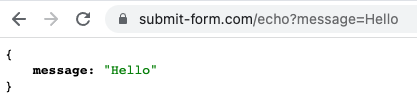
You can rapidly test your form payloads by submitting to https://submit-form.com/echo.
```html
```
## JavaScript
Formspark has excellent AJAX support, [learn more about it here](https://documentation.formspark.io/examples/ajax.md).